macOS Monterey and later

Your time, floating right where you need it.

Floating Clock keeps the time, date and Caps Lock status in a small, always-visible window on your desktop — now with world clocks and task timers. Then it quietly steps out of the way.

Download on theMac App Store Universal · Apple silicon & Intel
Sunday, 6 July 2025  19:42
New York  13:42
London  18:42
Tokyo  03:42 (+1)
Write report in 8 min
Move your pointer close and it quietly disappears.
What is Floating Clock?

A little window that keeps time in view.

Floating Clock is a lightweight, highly configurable macOS app that displays a window with the time, date and Caps Lock status — perfect for when you hide the menu bar.

It also provides useful timers: set as many as you like, and each one launches a system notification when it finishes. And now it does even more.

Take a look

Everything is configurable, from a clean, native interface.

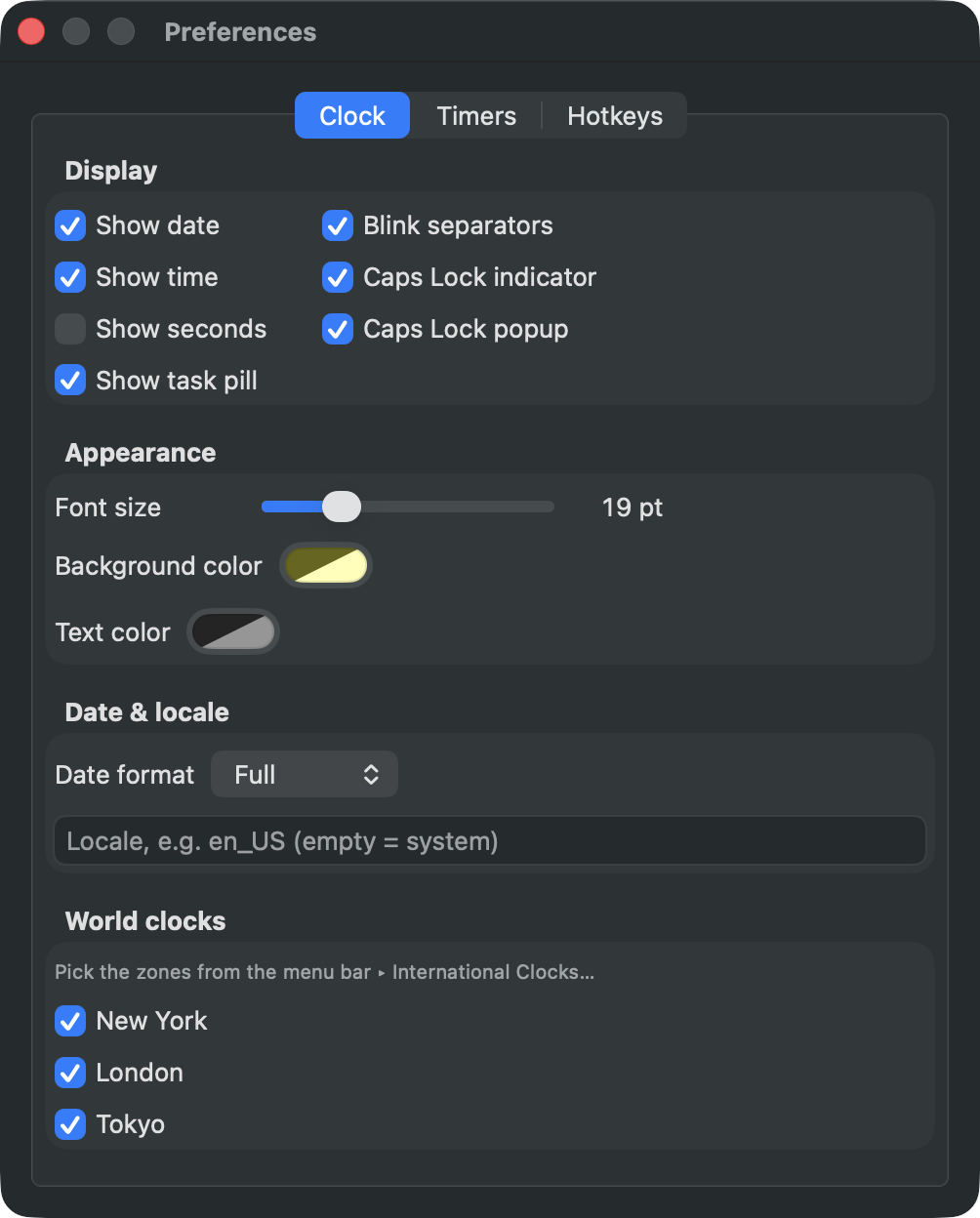
Floating Clock preferences: display options, appearance, date and locale, and world clocks
Preferences, all in one place
Date & time formats, font size, colors and opacity, world clocks and more.
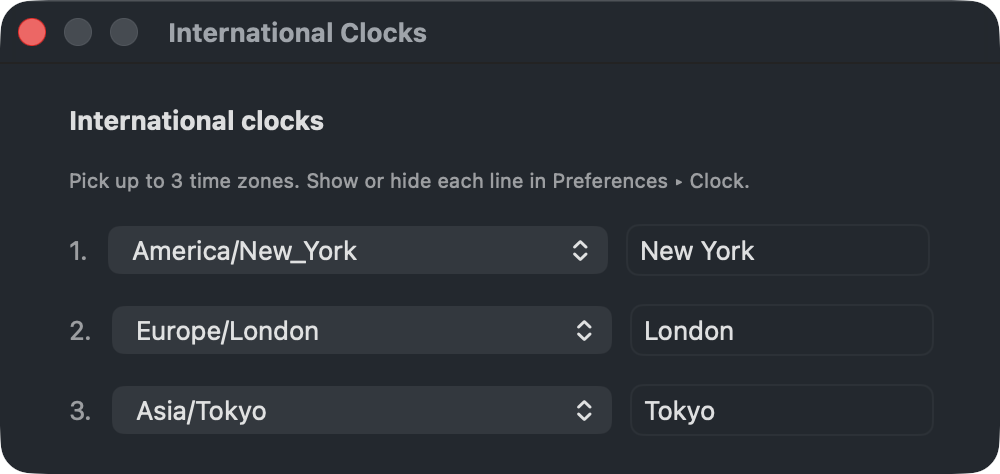
The International Clocks window, choosing up to three time zones
Choose your time zones
Pick up to three international clocks, each with its own label.
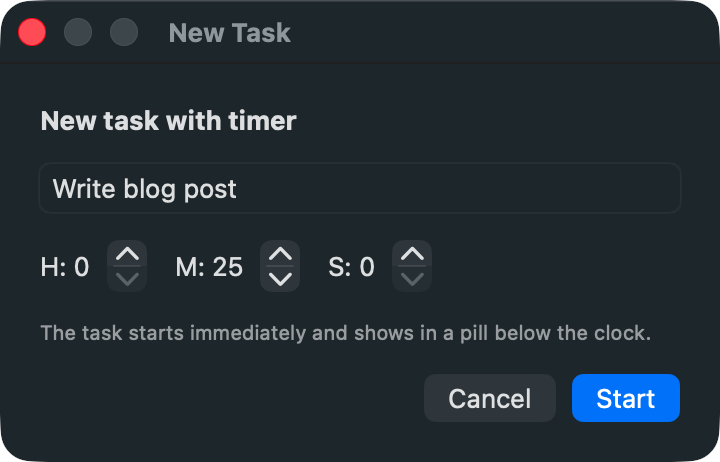
The New Task dialog to start a task with a countdown
Start a task with a countdown
Name a task, give it a time, and watch it under the clock.
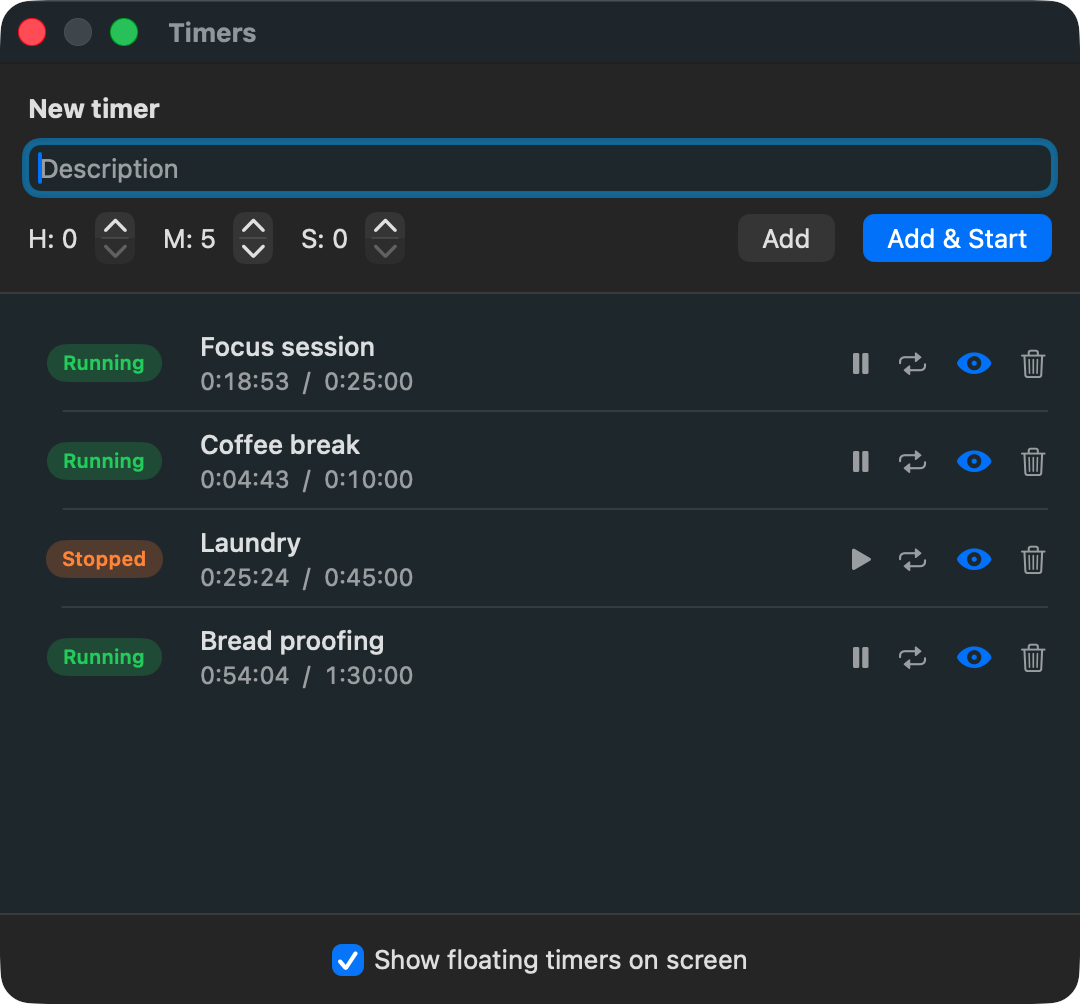
The Manage Timers window with running and paused timers
Manage every timer
Create, pause, repeat and show timers — from one second to many hours.
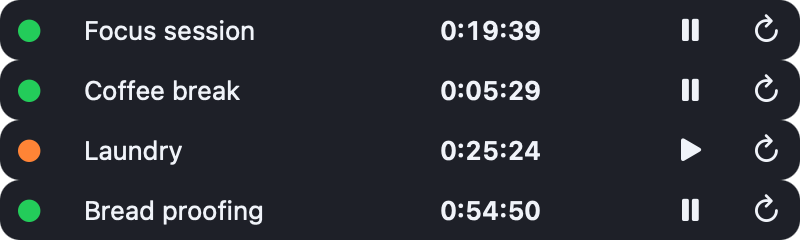
Floating timers shown on the desktop with live countdowns
Timers on your desktop
Your running and paused timers, always a glance away.
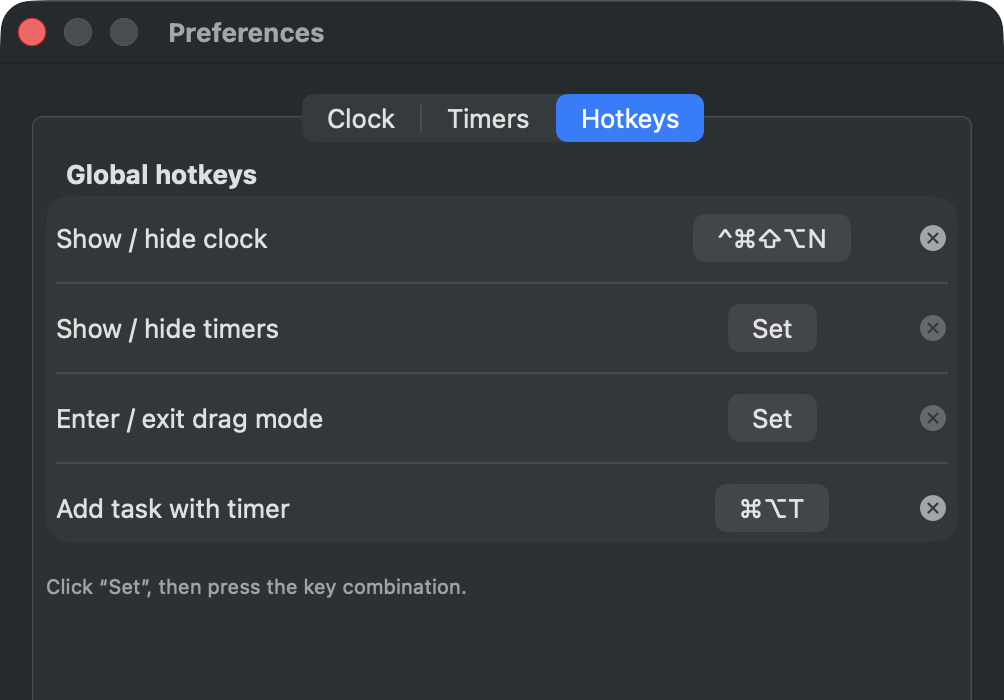
Configurable global hotkeys in Floating Clock preferences
Configurable global hotkeys
Show or hide the clock and timers, drag mode, and add a task.

Speaks your language

The date and time follow your Mac’s language and region — or any locale you choose.

Floating Clock showing the date in Chinese
Chinese
Floating Clock showing the date in Japanese
Japanese
Floating Clock showing the date in Korean
Korean
Floating Clock showing the date in Hindi
Hindi
Floating Clock showing the date in Vietnamese
Vietnamese
Floating Clock showing the date in German
German
New

Rebuilt, and doing more

A refreshed, native macOS interface — and three things it never did before.

International clocks

Add up to three time zones right under the clock, each with a label and a “+1 / −1” day indicator when the date differs.

Tasks with a timer

Press ⌥⌘T, name a task and give it a countdown. A pill appears under the clock and shifts from green to red as time runs out.

Spaces & full screen

The clock, its pills and your timers now follow you across every Space and stay visible over full-screen apps.

Everything Floating Clock does

Small on screen, generous with options.

Configurable

Almost everything can be configured: date and time formats, a locale override, font and window size, and background and text colors — each with its own opacity.

Movable

Drop the clock into any of nine preset positions, drag it anywhere, or save three custom spots — across as many monitors as you have.

Non-obtrusive

Position, size, colors, opacity and visibility are all up to you — and every window quietly hides the moment your pointer hovers over it.

Timers

Set an unlimited number of timers, from one second to many hours, each with a system notification when it finishes. Hold Shift to keep the timer window from hiding while you use it.

International clocks New

Up to three time zones beneath the clock, each with its own label and a day-offset indicator. Choose them from a dedicated window; toggle each in Preferences.

Tasks with a timer New

Give any task a countdown with a global shortcut. A pill shows the task that finishes soonest — “Write report in 8 min” — fading from green to red.

Works everywhere New

Follows you across every Space and stays on top of full-screen apps, so the time is always a glance away.

Global hotkeys

Configurable system-wide shortcuts to show or hide the clock and timers, enter drag mode, and add a task — from anywhere on the Mac.

Caps Lock status

A flag on the clock marks whether Caps Lock is on or off — handy with external keyboards — plus an optional popup whenever it changes.

Menu-bar app

Floating Clock lives in the menu bar — or fully hidden — so it is always available and easy to control.

Multiple displays

Choose which screen shows the clock and move it freely on any of them — and keep the timers window on a different display entirely.

A lifetime license

Buy once on the Mac App Store and it’s yours for good — no subscription, with free updates for everything that comes next.
Why you’ll want it

A hidden menu bar no longer hides the time — the date and time stay visible, anywhere on any monitor.
See other cities at a glance with up to three world clocks under the main time.
Unlimited timers and task countdowns, with Notification Center integration when they finish.
A Caps Lock indicator with a popup on change — especially useful with external keyboards.
Always on every Space and over full-screen apps, and out of your way when you don’t need it.

Support & feedback

Comments, bug reports and feature requests are always welcome.

Prefer email? Write to .

Get Floating Clock

A one-time purchase on the Mac App Store, with free updates — including everything new above.

Download on theMac App Store
Requires macOS Monterey (12) or later.